Congratulations!
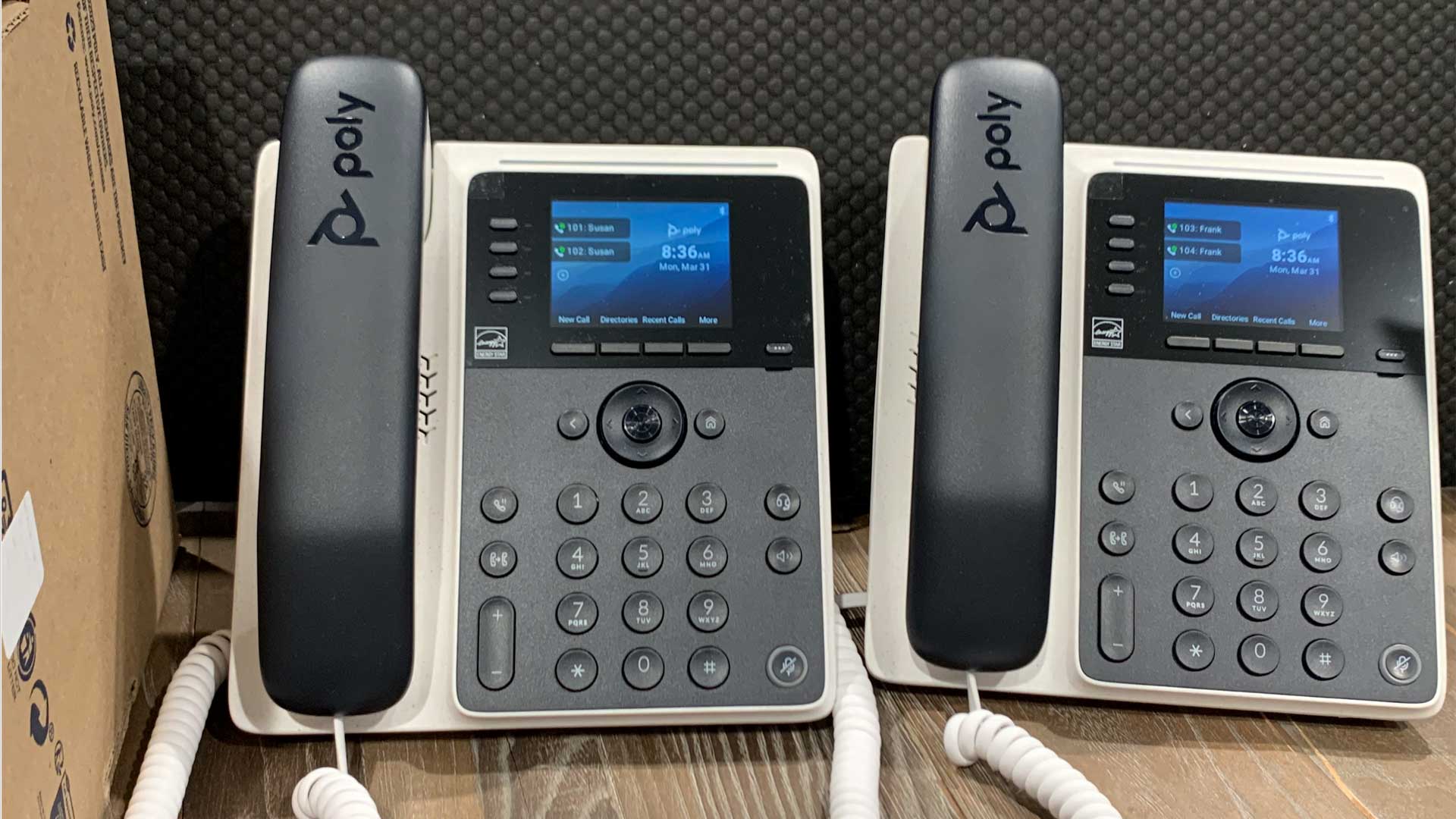
You’ve got a new phone from Information Results Corporation! We’re certain that you will be delighted with its performance and features.
We’ve tried to include all the basics here, but your Service Desk is here for you should you need our help!
Your extensions
Your desk phone is typically setup with one or two extensions.
- A primary extension, for example: 101 (required)
- A secondary extension, for example: 102 (optional)
Answering calls
Here are the basics of receiving and placing calls.
Incoming calls will ring on your primary extension. The caller ID of the caller (if available) will be shown on the display.
If you’re already on the phone and another call comes in, don’t panic!
- To take the second call, ask the first caller to hold on, then press Answer. The first caller will be placed on hold automatically.
- Once you hang up with the second caller, just click the Resume button to get back to the first caller.
If you’re on a call and need to place another call, ask the first caller to hold on, then the key next to your secondary line. The first caller will be placed on hold automatically.
How to setup your GoTo voicemail greeting
You can setup your GoTo voicemail greeting from your GoTo desk phone. If you have a desk phone, this is the easiest method.
Alternately, you can use the GoTo web app or a GoTo mobile app.
From any of the above devices, select the line that you want to setup voicemail for.
Then, follow these steps:
- Dial * 9 9
- If asked for a password, enter the 4 digit password provided to you by your voicemail administrator.
- Press 0 for mailbox options, then choose one of the options below.
Mailbox options:
- Press 1 to record your unavailable greeting (recommended)
- Press 2 to record your busy greeting (optional)
- Press 3 to record your name (recommended)
- Press 4 to record your temporary greeting (optional)
- Press 5 to change your password
- Press * to return to the main menu
For more details about voicemail, visit the GoTo Connect Voicemail Guide.
How to listen to your GoTo voicemail
When you have a new voicemail, most desk phones will provide an indicator, such as a flashing red light.
To check your voicemail:
- Dial * 9 9 from your desk phone.
- If asked for a password, enter the 4 digit password provided to you by your voicemail administrator.
- Follow the instructions to listen to your messages.
Your administrator can also arrange to have all voicemails sent to you as an email attachment.
For more details about voicemail, visit the GoTo Connect Voicemail Guide.
The GoTo Voicemail Menu Guide
If you’ve ever wondered about all the varous menus and options available in the GoTo Voicemail system, you’re in the right place!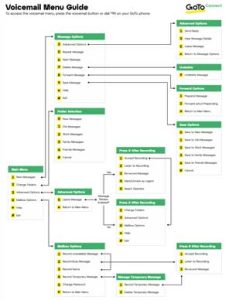
The GoTo Voicemail Menu Guide is a 5 page PDF document that shows the entire GoTo Voicemail menu tree.
This unique resource includes detailed descriptions of all the GoTo Voicemail menus.
- Entire voicemail menu tree
- Voicemail Menu Descriptions (diagram)
- Detailed descriptions of:
- Message Options
- Folder Selection
- Advanced Options
- Mailbox Options
Our team can get you started
If you’re considering installing a new phone system, you’re in the right place! Information Results Corporation can get you started with your phone system today.
We handle all the details from start to finish. Our partnership with GoTo means you’ll get quality phones at a discount, superb system uptime, and an extended support team available 24×7 to answer any questions.
Looking for a better phone system? Connect with our sales department and we’ll help you get started!